Running the mall
Listing items for dealers
Many dealers would rather not list their own items online. Your staff can do it for them — and AllAisles charges your listing-service fee on those items automatically.
How the fee works
Say a dealer’s agreement is 17% commission, and +3% listing service if the mall lists for them:
| Dealer lists it | Mall lists it | |
|---|---|---|
| Mall’s cut | 17% | 20% |
| On a $100 sale, the dealer gets | $83.00 | $80.00 |
The extra 3% is stamped onto the item when it’s listed and only comes out when that item sells. Items the dealer listed themselves are never charged it.
List an item for a dealer
- Go to List item for vendor in the back office (or click + List item on a dealer’s page).
- Choose the dealer under List this item for. Their booths fill the Booth list.
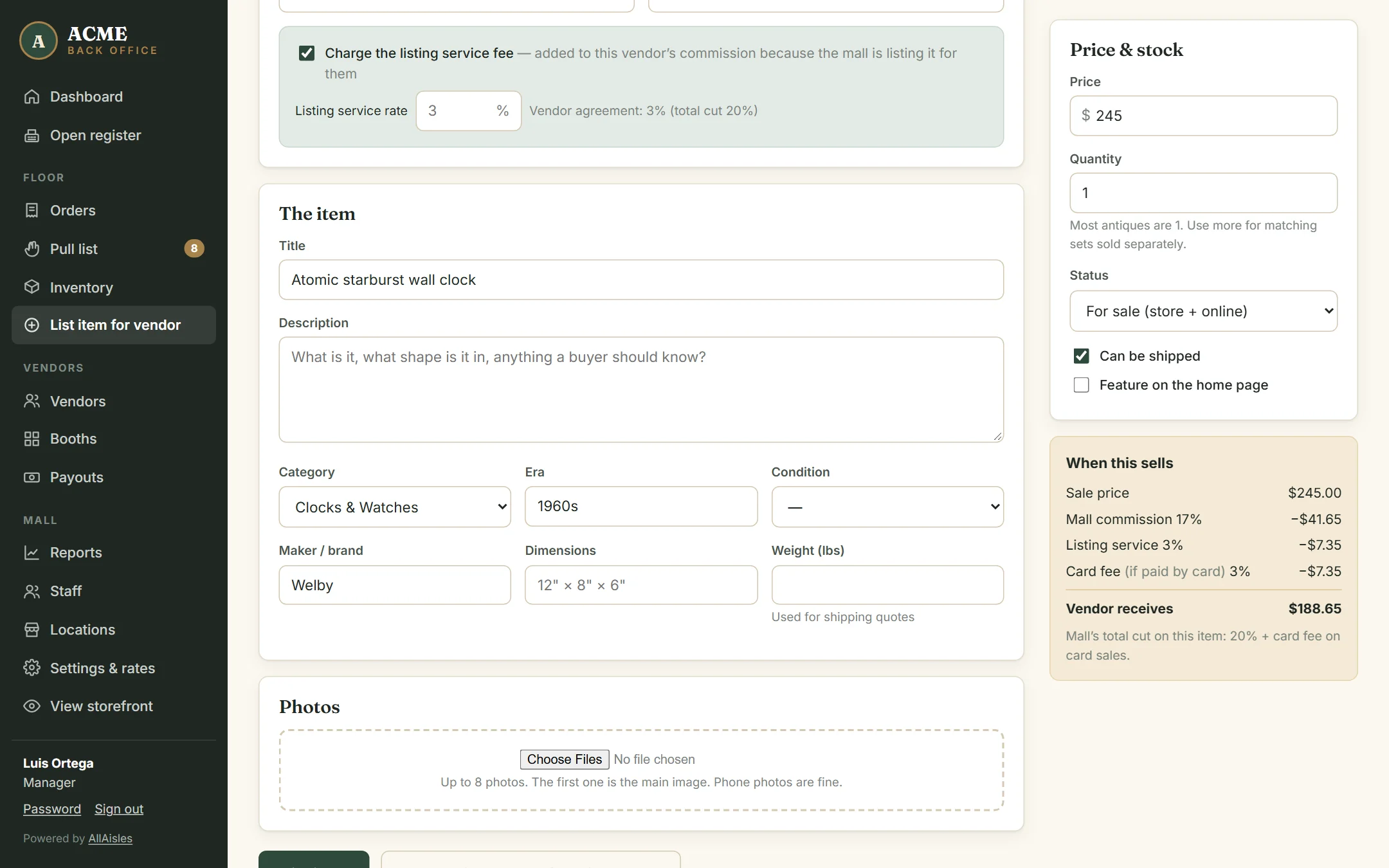
- Charge the listing service fee is ticked, with the dealer’s agreed rate filled in.
- Enter the title, description, category, era, condition, maker, size and weight, and add photos.
- Enter the price. When this sells shows the commission, listing fee, card fee and what the dealer receives.
- Click List item, or Save & list another for this vendor to keep going with the same dealer.
Waiving or changing the fee
Untick Charge the listing service fee to waive it on one item, or change the rate for this item only. Only roles with Waive the listing-service fee see these controls; for everyone else the dealer’s agreed rate always applies, and AllAisles enforces that even if someone tries to get around the form.
Featured items
Tick Feature on the home page to put an item in the “Dealer picks” row of your storefront.
Photos
Add up to eight photos; the first is the main image. Phone photos are fine. Until an item has a photo, the storefront shows a styled placeholder with the item name.
Item status
| Status | Meaning |
|---|---|
| For sale | On the floor and online. |
| Hidden online | Still sellable at the register, but not shown on the website. |
| Removed | Taken out of the booth. Setting quantity to 0 also removes it. |
| Sold | Set automatically when the last one sells. Restock by raising the quantity. |