Running the mall
Staff, roles & permissions
Every mall runs differently. Some owners hand managers the keys; others keep rates and payouts to themselves. AllAisles lets the owner decide, one permission at a time.
Roles
- Owner — can always do everything, and is the only one who can change what other roles can do.
- Manager and Cashier — built in. Their permissions can be changed, but they can’t be deleted.
- Your own roles — create as many as you like: “Bookkeeper”, “Floor lead”, “Weekend help”.
Change what a role can do
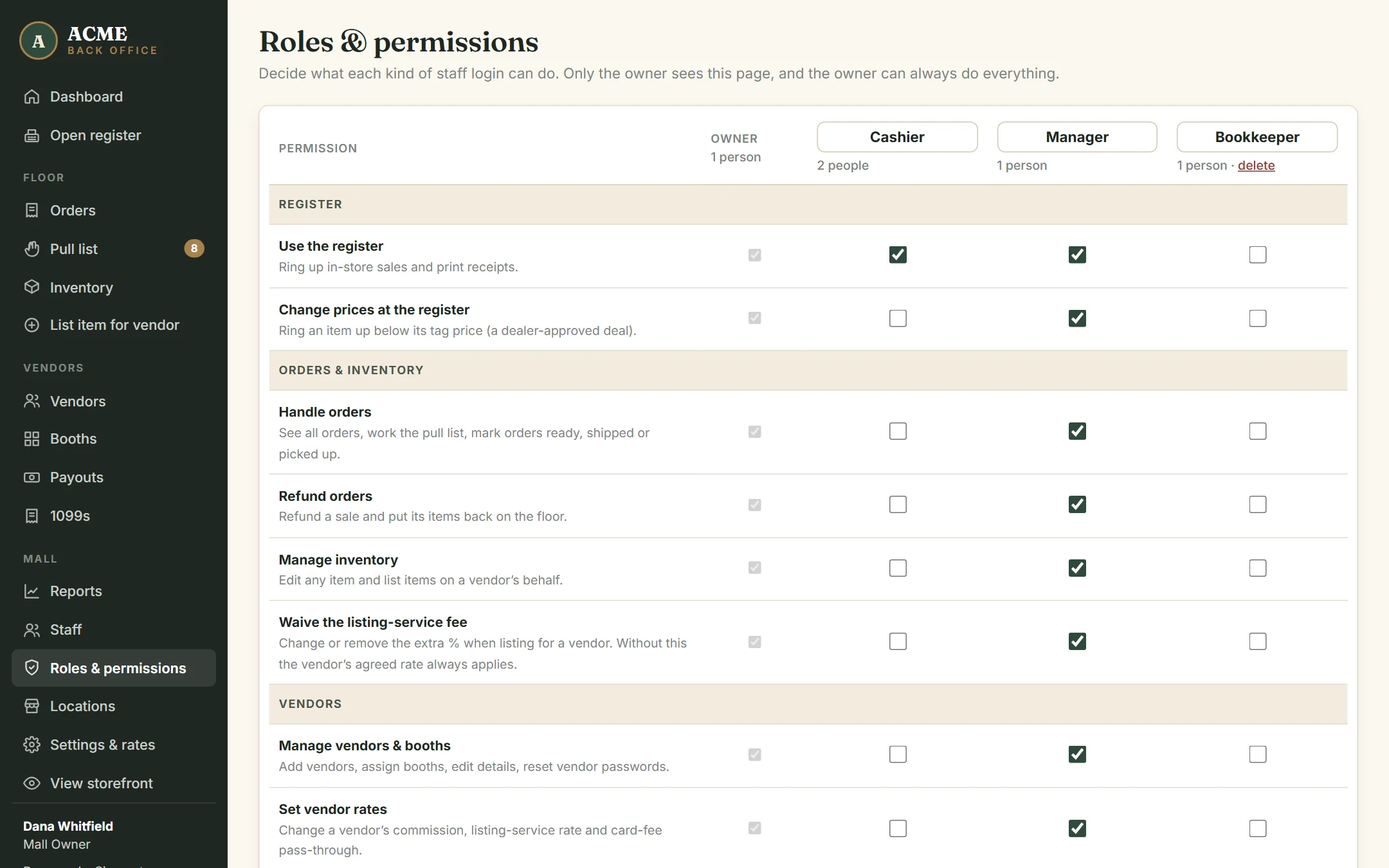
Back office → Roles & permissions (owner only). Each column is a role; each row is a permission. Tick and untick, then click Save roles. It takes effect on each person’s next click.
The permissions
| Permission | Lets them |
|---|---|
| Use the register | Ring up sales and print receipts |
| Change prices at the register | Sell below tag price (dealer-approved deals) |
| Handle orders | See orders, work the pull list, mark ready / shipped / picked up |
| Refund orders | Refund a sale and put the items back |
| Manage inventory | Edit any item; list items for dealers |
| Waive the listing-service fee | Change or remove the extra % when listing for a dealer |
| Manage vendors & booths | Add dealers, assign booths, reset dealer passwords |
| Set vendor rates | Change commission, listing-service rate and card-fee pass-through |
| Prepare payouts | See what’s owed and create statements |
| Mark payouts paid | Record that a check or transfer went out |
| See reports & mall revenue | Reports, exports and money figures on the dashboard |
| Manage tax info & 1099s | See dealers’ full tax IDs, enter W-9s, set 1099 options and export the filing file (every view and export is logged). Owner only unless you grant it. |
| Change mall settings | Default rates, card fee, tax, shipping, payout schedule |
| Manage staff logins | Add and deactivate staff |
Add a role
At the bottom of the page, give it a name and a short description, and optionally start from an existing role’s permissions. Then tick what it can do and save. A role can be deleted once nobody is in it.
Add a staff member
Back office → Staff. Enter their name and email, choose a role and click Create login. Their temporary password is shown once. To change someone’s role or switch their login off, change it in the table and click Save.
If your mall has more than one building, tick the buildings each person works at, or leave them all unticked for “everywhere”. See Multiple locations.
The safety rules
- Permissions are enforced by the system, not just hidden from the menu. A cashier without “Change prices at the register” can’t sell below tag price, even with a trick.
- Someone who can manage staff can only give out roles whose permissions they have themselves. Nobody can create a login more powerful than their own.
- Only an owner can create or edit an owner, and nobody can change their own role.
- The mall always keeps at least one active owner.