At the counter
Using the register
The register runs in a web browser on any computer or tablet at your counter. One ticket can hold items from any number of dealers — AllAisles splits it for you.
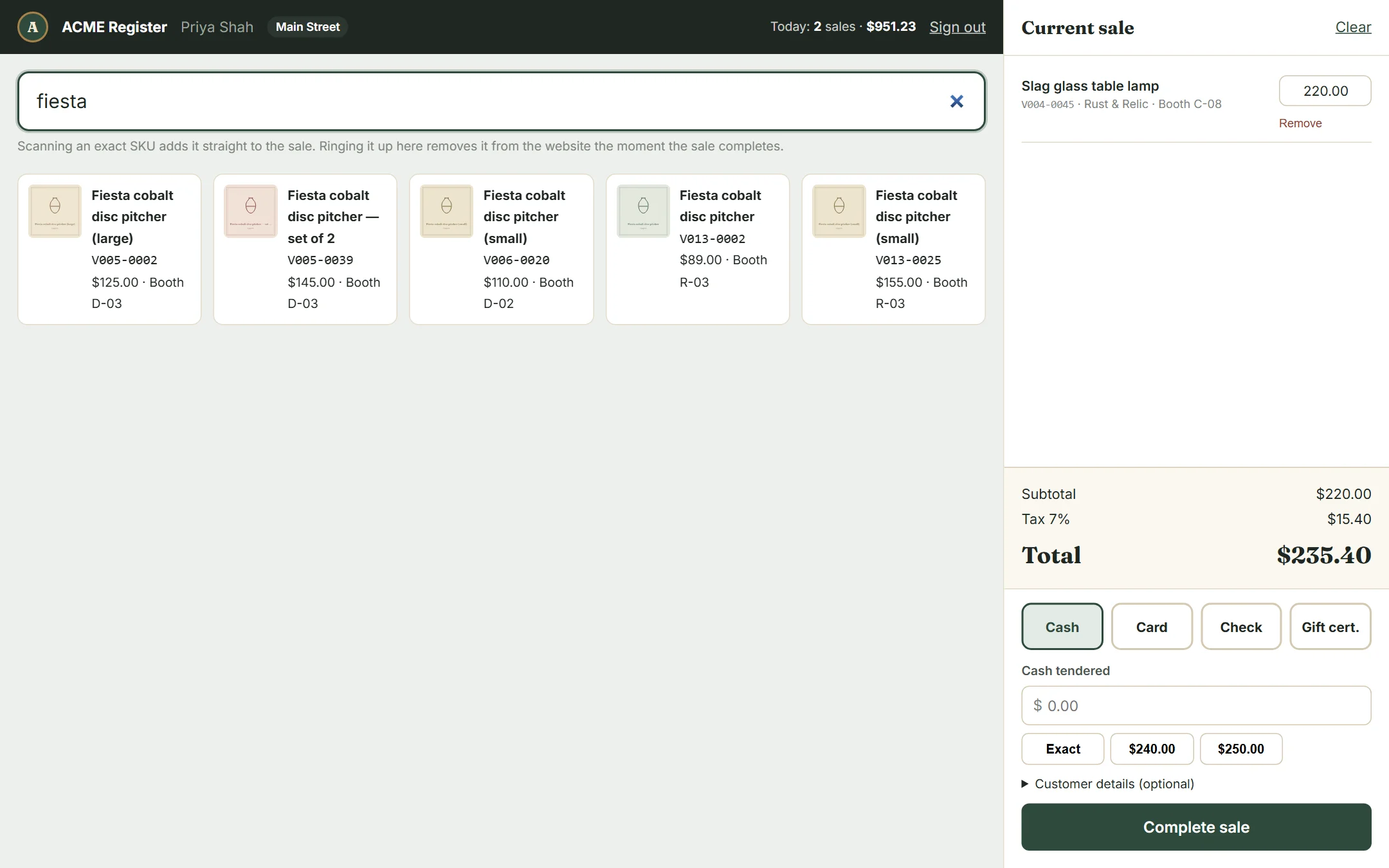
Ring up a sale
- Scan the barcode on the price tag. The item goes straight onto the sale. No scanner? Type the SKU and press Enter.
- Can’t find the tag? Type part of the name (“pyrex”, “oak table”) and click the right item. Sold or hidden items show greyed out with their status, so you don’t sell something twice.
- Repeat for each item. Items with more than one in stock get a quantity box.
- Choose Cash, Card, Check or Gift cert. (see below).
- Click Complete sale.
The moment you complete the sale, each item is marked sold and disappears from the website.
Taking payment
Cash
Type the amount handed to you, or tap one of the quick buttons (Exact, or the next round amounts). After you complete the sale, the change due is shown in large type.
Card
Run the card on your card terminal, then enter the last four digits from the slip (optional) and complete the sale here. If your card fee is paid by dealers, it’s taken from their share automatically.
Check
Enter the check number for your records.
Gift certificate
For the mall’s paper gift certificates. Choose Gift cert., type the number printed on the certificate (it’s required), keep the certificate, and complete the sale. Dealers are paid their share exactly as if the customer had paid cash — no card fee.
AllAisles records which certificate paid for the sale; it doesn’t track certificate balances. Sell and track certificates the way you do today. To check whether a number has been used before, search it in Orders.
Dealer-approved discounts
Each line has a price box. Change it to sell below the tag price — for example when a dealer has OK’d “10% off” — and the dealer’s split is calculated on the price you charged. The tag price is still shown so nobody wonders later. This box only works for roles with Change prices at the register.
Customer details
Optional. Open Customer details to add a name, email or phone — handy for big purchases or holds.
After the sale
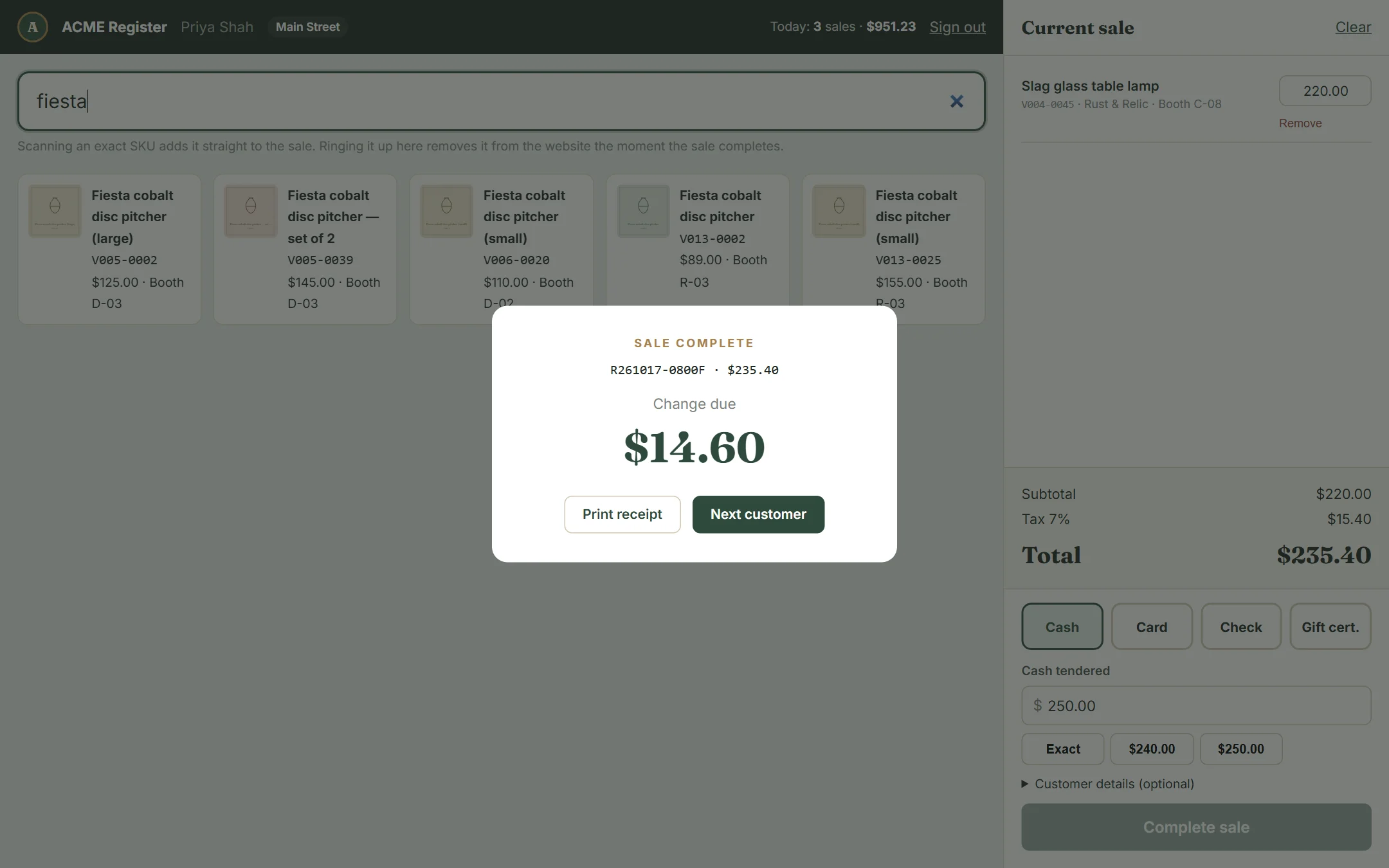
Click Print receipt for a receipt-printer-sized receipt, or Next customer to clear the screen. Recent sales are listed on the register’s home screen, with reprints.
Common questions at the counter
- “Already sold or not available” — someone bought it online a moment ago, or it was already rung up. Check the pull list; the item may need to come off the floor.
- Wrong item on the ticket — click Remove under it, or Clear to start over.
- Need to undo a completed sale — a manager refunds it from Orders.