Running the mall
Paying dealers
Every payment — cash, card, check and online — comes to the mall. On payout day, AllAisles tells you exactly what each dealer is owed and produces a statement they can check line by line.
Create statements
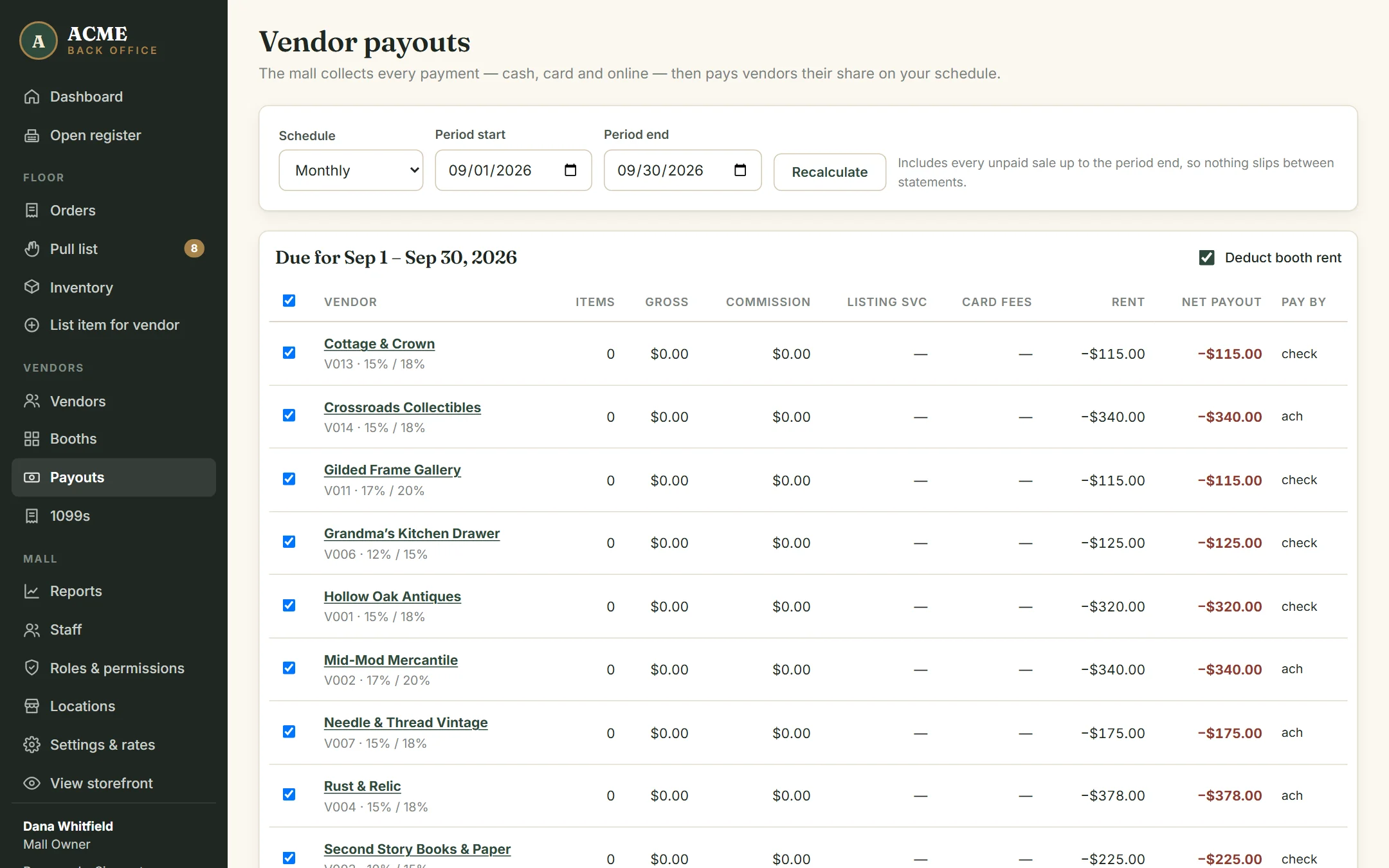
- Open Payouts. The period is filled in from your schedule — last month, last week, or the last two weeks.
- Change Schedule or the dates if you need to, and click Recalculate.
- The table shows each dealer’s items sold, gross sales, commission, listing-service fees, card fees, booth rent and net payout.
- Leave Deduct booth rent ticked to take rent out of this payout.
- Untick any dealer you’re not paying this time.
- Click Create payout statements.
Pay and mark paid
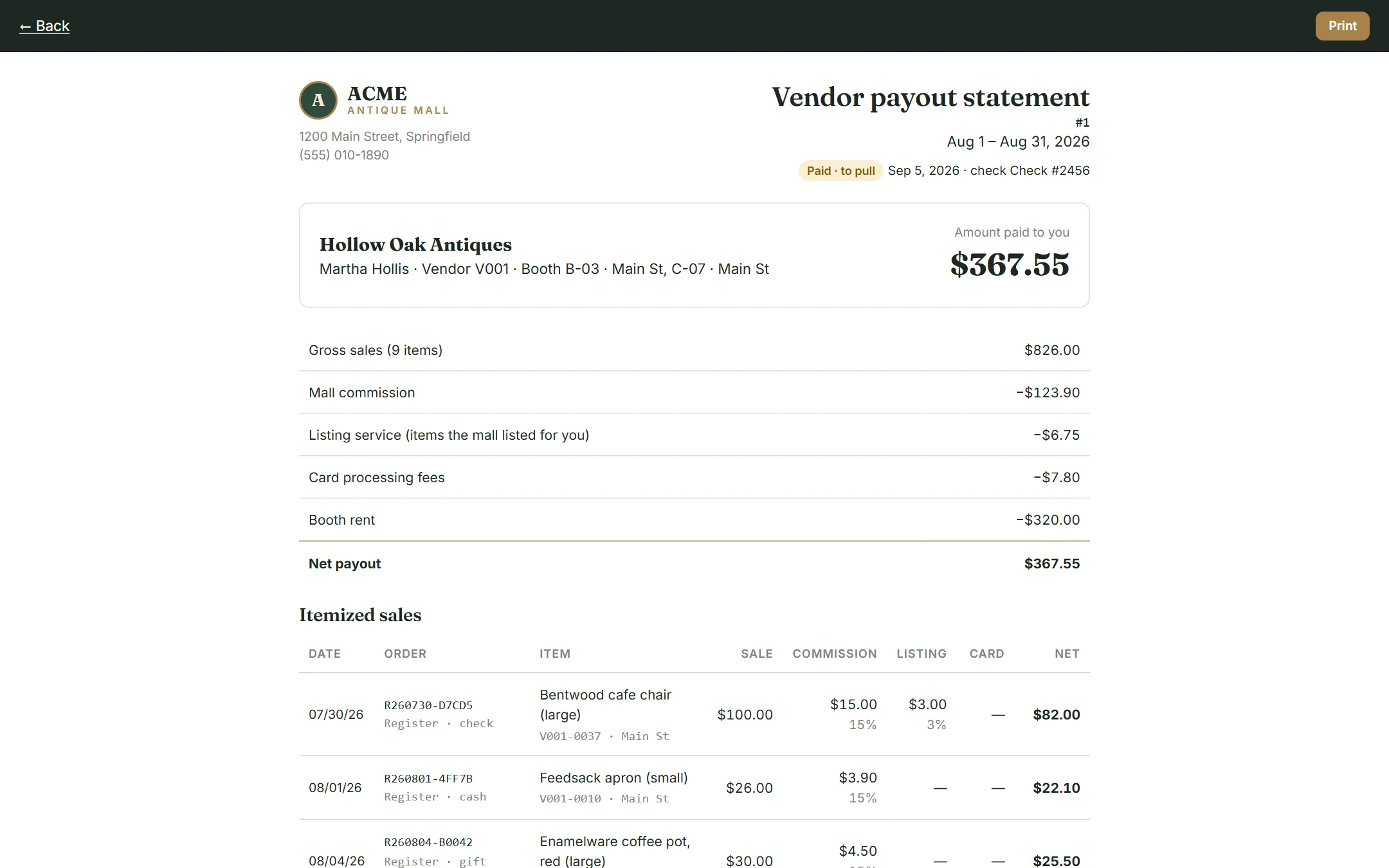
Open each statement from the list at the bottom of the Payouts page. Print it (or save it as a PDF) to go with the check. Then choose how you paid, enter the check number or transfer reference, and click Mark paid.
Preparing statements and marking them paid are separate permissions, so a manager can prepare them for the owner to approve.
When the net is negative
If a dealer’s rent is more than their sales for the period (or a refund comes back), the statement shows the amount they owe the mall, in red. Collect it however you normally collect rent.
What dealers see
Each dealer sees their statements under Payouts in their portal, plus what they’ve earned that isn’t paid yet. Every line shows the sale, commission, listing fee and card fee, so there’s nothing to argue about on payout day.